Creating Unique customer id field
Creating LMSContactID field in zoho
-
Login to Zoho Books here. - On the top navigation bar click on the
 icon.
icon.

- On the page that opens, scroll down to Module settings:
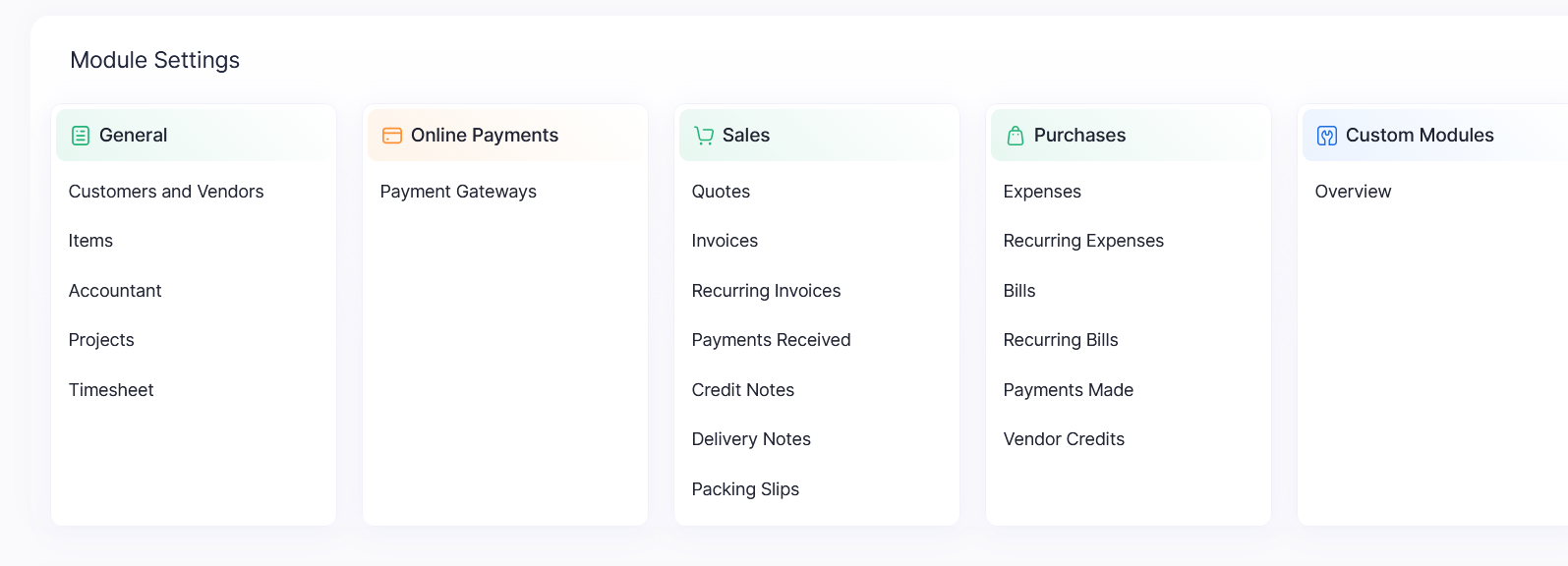
- On General, click on Customers and Vendors.
- Go to the field customization tab.
-
Click on the New Custom Field button
- On the label name field, type/paste LMSContactID
- On the Data Type field, select Text Box (Single line).
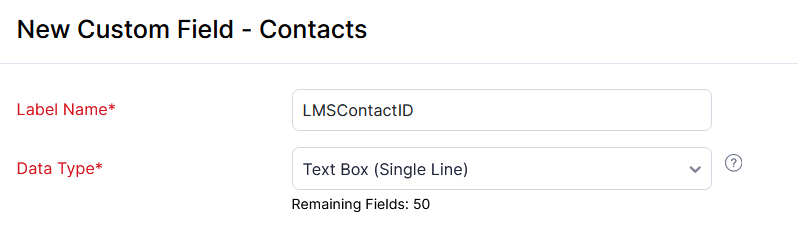
- More fields will show up. Go to Prevent Duplicate Values and check on Yes.
- Scroll down and click on save:
- Go back to the LMS application and click on validate.
Related Articles
Creating LMSTransactionID in Zoho
Creating LMSTransactionID field in zoho Login to Zoho Books here. On the top navigation bar click on the icon. On the page that opens, scroll down to Module settings: On General, click on Accountant Go to the Journal Custom fields tab. Click on the ...
Disabling unique names in Zoho Books
Disabling unique names in Zoho Books Login to Zoho Books here. On the top navigation bar click on the icon. On the page that opens, scroll down to Module settings: On General, click on Customers and Vendors. On the General Tab, uncheck the ‘Allow ...
How to Login to Presta
Click on the link below Presta Login 1. Enter the account name/ tenant ID. For example, Presta Capital or t10007 and click on Continue. 2. Enter the user name and password and click on Sign in. 3. Click on Presta Loan Management to access the LMS
Loan Options
Once a loan application is complete, the below option are present. Topup Loan -> This where one can Topup a loan. This basically creates a new loan with the principal equal to the sum of the disbursement amount of the new loan and the outstanding ...