Disabling unique names in Zoho Books
Disabling unique names in Zoho Books
-
Login to Zoho Books here. - On the top navigation bar click on the
 icon.
icon.

- On the page that opens, scroll down to Module settings:
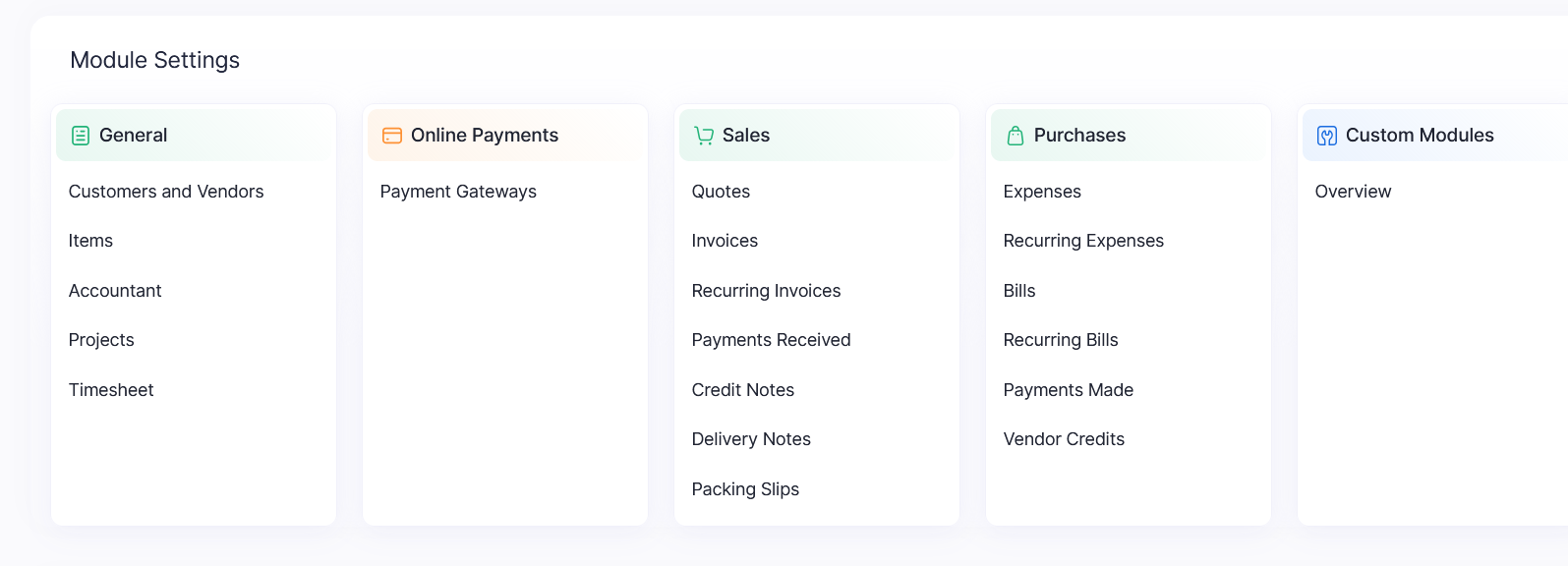
- On General, click on Customers and Vendors.
-
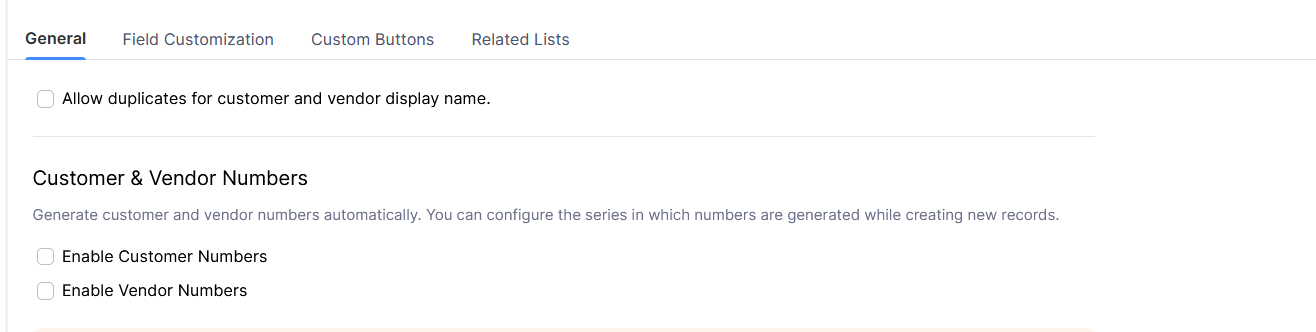
On the General Tab, uncheck the ‘Allow duplicates for customer and vendor display name.’ check box.
-
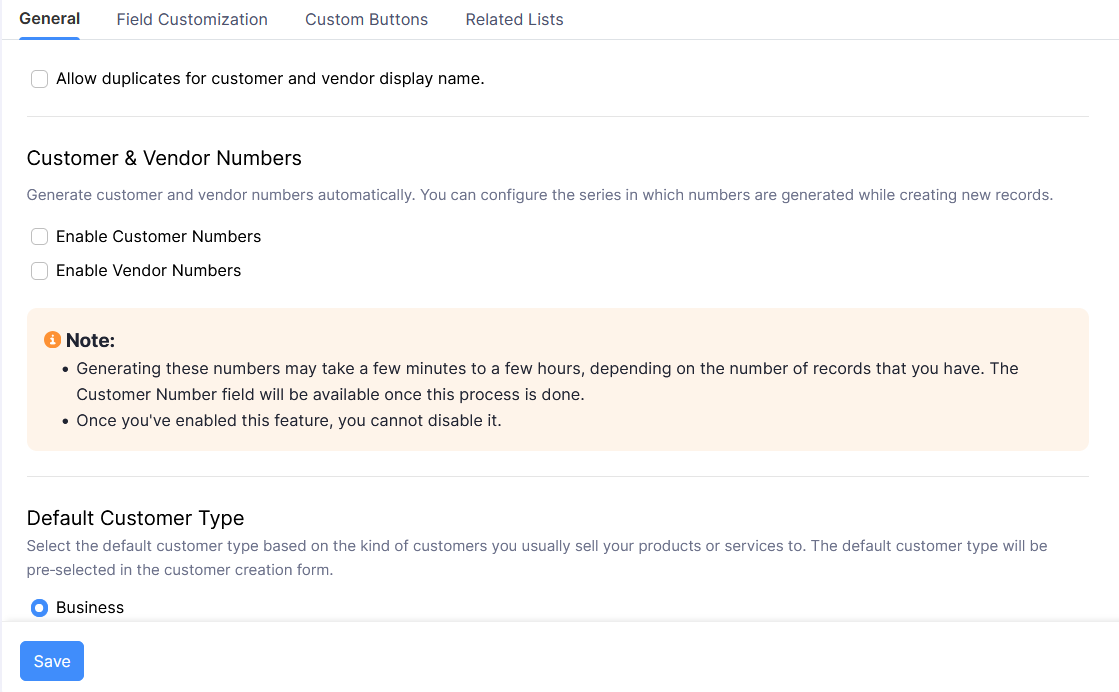
After validating that the checkbox is unchecked, click on save:
- Go back to the LMS application and click on validate.
Related Articles
Creating LMSTransactionID in Zoho
Creating LMSTransactionID field in zoho Login to Zoho Books here. On the top navigation bar click on the icon. On the page that opens, scroll down to Module settings: On General, click on Accountant Go to the Journal Custom fields tab. Click on the ...
Creating Unique customer id field
Creating LMSContactID field in zoho Login to Zoho Books here. On the top navigation bar click on the icon. On the page that opens, scroll down to Module settings: On General, click on Customers and Vendors. Go to the field customization tab. Click on ...